Input Decoding, Color Profiles & Geometry
Before creative color grading begins, establishing a clean physical input baseline and precise composition is vital. Alcedo Studio’s image pipeline treats RAW Decode / Raster Input Color and Geometry as global prerequisites that underpin all downstream color stages.
RAW Photography: Sensor-Level White Balance & Demosaicing
Digital camera RAW files are not ready-to-view RGB images; they consist of single-channel sensor measurements filtered through a physical Color Filter Array (CFA).
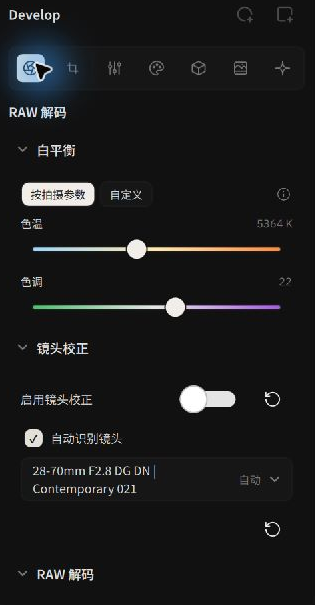 RAW Decode Console: Camera White Balance & Optical Calibration
1. Camera White Balance
- Physical Baseline (
As Shot): The engine reads the color temperature (Kelvin) and tint recorded by the camera body, applying gains directly to the R, G, and B sensor channels. - Distinct from Creative Look WB: RAW white balance establishes an objectively neutral physical baseline as the image enters the scene-referred linear pipeline. Stylized artistic shifts are best applied later in the Look Panel via CAT02 chromatic adaptation.
2. Demosaicing Algorithms
Demosaicing determines the sharpness, clarity, and artifact resistance when interpolating full three-channel color from the mosaic array:
- RCD (Ratio-based Corrected Demosaicing): The default algorithm for Bayer sensors. Offers edge preservation, low zipper artifacts, and moiré suppression.
- Neural Engine: A GPU-accelerated deep learning demosaicing model supporting both Bayer and Fujifilm X-Trans sensors. The neural network leverages learned natural texture priors to reconstruct fine micro-contrast while suppressing chromatic fringing.
- X-Trans Specialization: For Fujifilm’s 6×6 aperiodic CFA pattern, the pipeline defaults to a dedicated neural inference branch, eliminating painterly watercolor textures and false edge color artifacts.
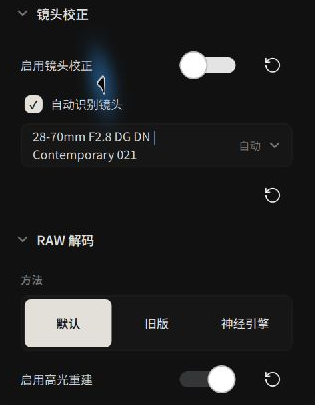
3. Highlight Reconstruction
When one or two color channels clip in high dynamic range scenes (such as clipped green channels in specular reflections or sun edges), conventional interpolation produces unnatural magenta or cyan blotches. Checking Enable Highlight Reconstruction allows the algorithm to infer missing channel data from unclipped color gradients, producing a smooth, natural highlight roll-off.
4. Lens Calibration
Alcedo Studio features deep integration with the Lensfun optical database:
- Automatic Camera & Lens Matching: Automatically detects camera mounts and specific lens profiles from EXIF metadata.
- Optical Corrections: Eliminates barrel and pincushion geometric distortion, optical vignetting (edge fall-off), and lateral/transverse chromatic aberrations (purple/green color fringing).
- Manual Override: For manual, vintage, or adapted lenses without full EXIF tags, search and select your lens profile manually from the picker.
Raster Input Color Management
Alcedo Studio also supports JPEG, TIFF, PNG, and OpenEXR files. When opening a non-RAW file, the panel presents Input Color / Input Profile:
 Automatic Color Space Detection for Non-RAW Files
- Auto (metadata): Default setting. The engine parses embedded ICC color profiles, PNG chromaticity chunks, or OpenEXR color primaries.
- Scene-Referred Conversion: Whether the image is encoded in sRGB, Display P3, Adobe RGB, or Rec.2020, the engine maps it cleanly into the scene-referred ACES linear workspace. This allows raster files to benefit from node-based grading and ACES/OpenDRT display transforms.
- HDR Raster Inputs: 10-bit+ HEIF/TIFF images containing PQ / HLG curves or 16/32-bit floating-point OpenEXR images are automatically recognized as HDR inputs.
Geometry: Intelligent Crop & Horizon Rotation
Geometry modifications define the permanent canvas boundaries. All subsequent localized grades and display outputs conform to this framing.
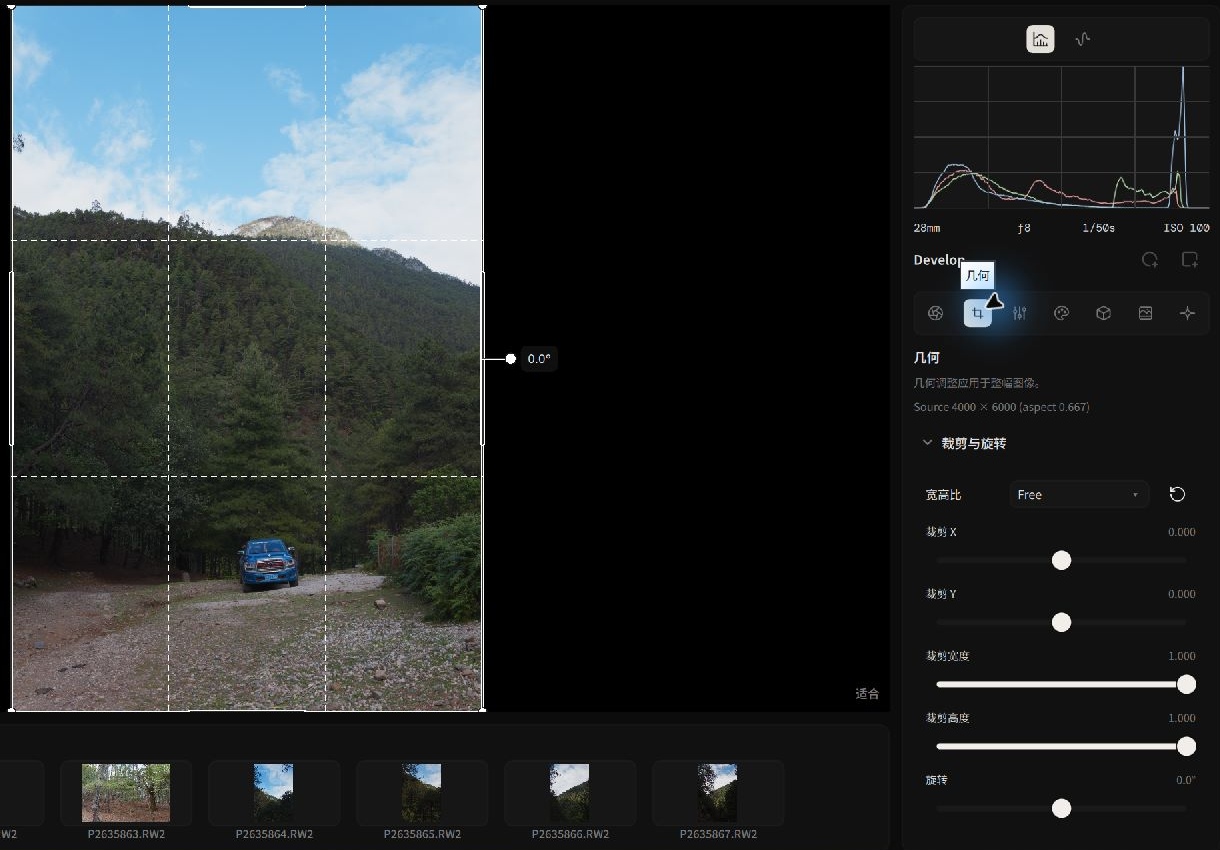 Composing with rule-of-thirds grid and boundary containment
- Aspect Ratio:
- Standard presets include:
Original,1:1,4:5(social portrait crop),16:9,3:2, and custom proportions. - Locking the ratio ensures that dragging crop handles maintains strict proportionality.
- Standard presets include:
- Interactive Canvas Handles:
- An on-canvas rule-of-thirds grid assists in compositional balancing.
- Drag corner and edge handles directly on the canvas, or enter exact pixel coordinates in the panel.
- Horizon Leveling & Rotation:
- Drag the rotation slider to level uneven horizons.
- Boundary Containment Algorithm: As you rotate the canvas, Alcedo Studio dynamically scales the crop rectangle so it remains strictly enclosed within valid sensor pixels, preventing black rotated corners or artificial pixel extension.
- Reset:
- Click
Reset crop and rotationat any time to return to the full uncropped frame.
- Click
With your input calibrated and your composition set, continue to Grading Nodes, Layers & Masks to explore multi-stage color design!