Preferences, Cache Management & Updates
Access Settings from the top toolbar to configure system parameters, GPU acceleration backends, disk thumbnail caching, keyboard shortcuts, and signed software updates.
Language, Themes & Workflow Behavior
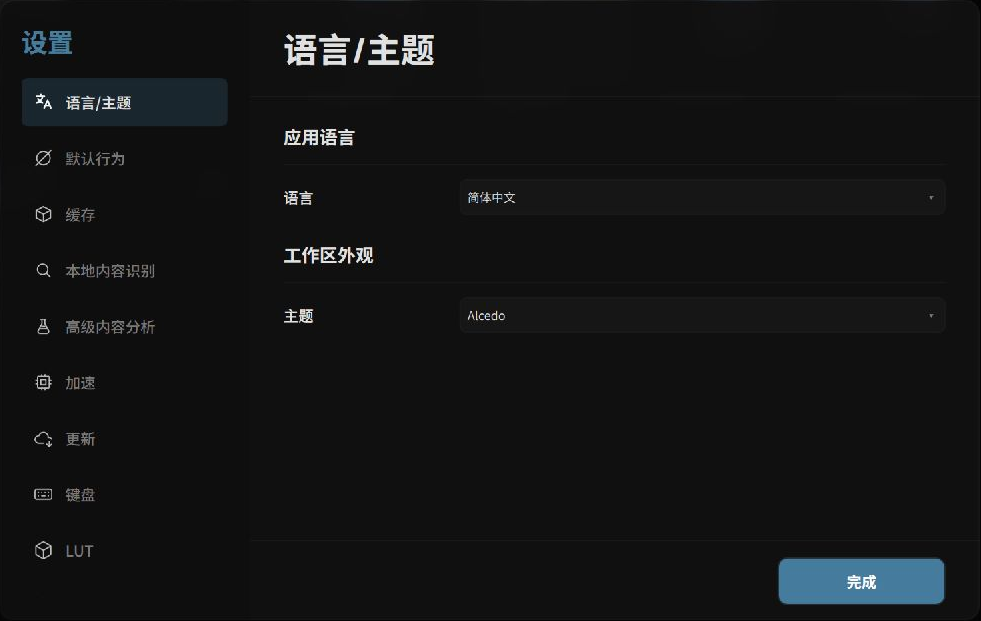 Preferences Console: Language, themes, and default behaviors
- Language / Theme: Toggle seamlessly between Simplified Chinese and English; ships with a professional darkroom dark theme.
- Default Behavior:
Governs how the application handles adding masks while the root grading node is selected:
- Create a new layer, then draw (Recommended): Automatically creates an isolated grading layer before drawing, preventing global baseline adjustments from being restricted within a local mask.
- Draw on the current node: Directly applies the mask to the active node.
- Ask every time: Displays a confirmation prompt.
Disk Cache: Thumbnail Storage & Performance
To reduce repetitive decoding overhead when browsing large sets of RAW files, Alcedo Studio manages an isolated disk thumbnail cache for each project:
- Real-Time Metrics: View active
Entries, total occupiedSizeon disk, and cache Hit/Miss ratios. - Cache Optimization:
- Disk cache toggle: Keep enabled for cached thumbnail browsing.
- Maximum entries per project & Thumbnail JPEG quality: Tune quality based on high-DPI monitor needs.
- Maintenance Operations:
Clear current project: Clears thumbnail caches for the active catalog without affecting source images or edit histories (thumbnails regenerate on next browse).Clear all cache: Purges all temporary caches to reclaim disk space.
Hardware Acceleration
See Installation & Hardware Setup. Select the optimal GPU compute backend for your platform (CUDA for NVIDIA on Windows, Metal for Apple Silicon on macOS, OpenCL 1.2 for generic graphics). Restart the application after modifying this setting to recompile compute pipelines.
Custom Keyboard Shortcuts
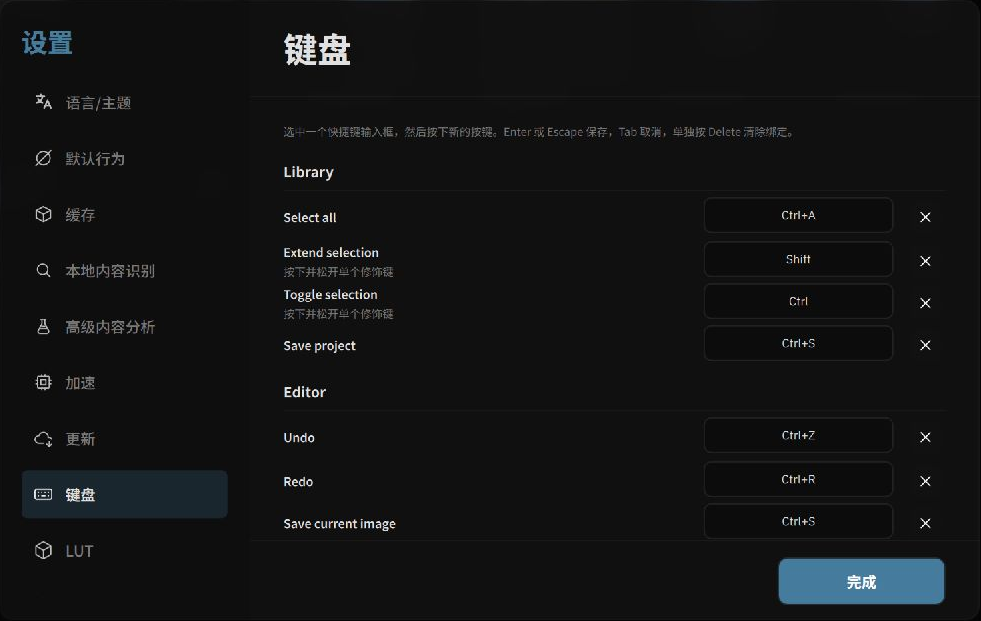 Keyboard Shortcuts Manager: Direct physical key recording and conflict detection
- Locate the desired command in the list (e.g., "Undo", "Add Radial Mask", "Rate 5 Stars").
- Click the shortcut field and press your desired key combination directly on your keyboard (e.g.
Ctrl+Alt+E). - Conflict Detection: If the shortcut is already assigned elsewhere, a highlighted conflict alert identifies the colliding command.
- Click the reset arrow to restore factory defaults. Changes apply immediately without restarting.
Signed Software Updates
Alcedo Studio provides digitally signed in-app updates:
- Open
Updates. The engine checks for new releases and renders the localized release notes and changelog. - Click
Download Update. The background downloader retrieves the package and verifies SHA-256 signatures and digital certificates. - Once verified, follow the prompt to restart and apply the update.
Background Tasks & Agent Monitoring
- Persistent Status Light: Located in the center of the top toolbar. Green indicates idle/normal; pulsing blue denotes active background tasks (batch export, folder import, AI analysis).
- Task Manager: Click the status light to expand the task drawer to review active jobs or cancel lengthy operations.
- Agent Session Monitor: When an external AI agent connects via
alcedo-cli, an agent session card locks to the top of the task drawer, displaying active grading commands with an immediateStopbutton to reclaim manual user control.