Library: Import, Collections, Ratings & Multi-Dimensional Culling
Alcedo Studio’s Library workspace is powered by an embedded high-performance DuckDB database (the Sleeve engine), engineered to effortlessly handle catalogs containing tens of thousands of high-resolution images. All cataloging operations are performed on lightweight metadata references, ensuring blazing-fast querying while keeping your original files untouched.
Importing Photos: Fine-Grained Controls & Recursive Scanning
Alcedo Studio provides two flexible import pathways to accommodate diverse shooting workflows:
[ Disk Source Files ] ──┬──▶ [ Import Images (Direct selection) ] ─────────┐
                        └──▶ [ Import From Folder (Recursive + Filtering) ] ┴─▶ [ DuckDB Metadata Catalog & Thumbnail Cache ]
1. Import Images
Click Import Images in the left panel to launch the system file dialog. Ideal for bringing in single photographs or a small preselected batch.
2. Import From Folder
For full memory cards or external archive drives, recursive folder scanning is the recommended approach:
- Select the root directory. The engine scans the folder and all nested subdirectories.
- An import confirmation dialog aggregates files by their genuine format:
- RAW: Professional camera raw data (Sony
.ARW, Canon.CR2/.CR3, Nikon.NEFincluding HE/HE*, Fujifilm.RAF, Leica / generic.DNG, etc.). - Raster Images: JPEG, TIFF (8/16/32-bit), PNG, and OpenEXR.
- Other Files: Non-image assets are counted for visibility and automatically excluded.
- RAW: Professional camera raw data (Sony
- Format Filtering: Check only the formats you want to ingest. For dual-slot cards containing RAW + JPEG pairs, simply check RAW to keep your library lean.
- Click
Import … File(s). The engine concurrently extracts EXIF metadata and registers records into DuckDB. A circular progress ring monitors progress and supports smooth cancellation.
Alcedo Studio never copies or alters source files on disk. Importing simply establishes fast indexed pointers inside the .alcd project catalog.
Virtual Collections: Non-Destructive Asset Organization
Use the Collections panel in the left sidebar to group photographs by assignment, subject, or client:
- Create & Manage: Click
+to add a new collection (e.g., "2026 Iceland Expedition", "Studio Portrait Portfolio"). - Organize: Select one or multiple thumbnails in the center grid and drag them onto a collection, or right-click and choose
Add to Collection. - Safe Deletion Logic:
- Remove from Collection: Only detaches the virtual reference from that specific collection; the photo remains fully indexed in the catalog.
- Remove from Project: Completely removes the photo’s edit history and index from the
.alcddatabase, but leaves the original file on disk completely intact.
Star Ratings & Culling
Rapidly sorting through hundreds of burst frames is vital for photography workflows:
- Keyboard Culling: With photos selected, press number keys
1through5to assign star ratings; press0to clear ratings. - Batch Rating: Hold
Shiftfor range selection or pressCtrl+A(Cmd+Aon macOS) to select all images in the active view and assign ratings in bulk. - Background Persistence: All rating updates are committed asynchronously to the database without requiring manual project saves.
Album Inspector: Filter, Sort & Group
The Album inspector on the right turns raw metadata into an interactive control dashboard:
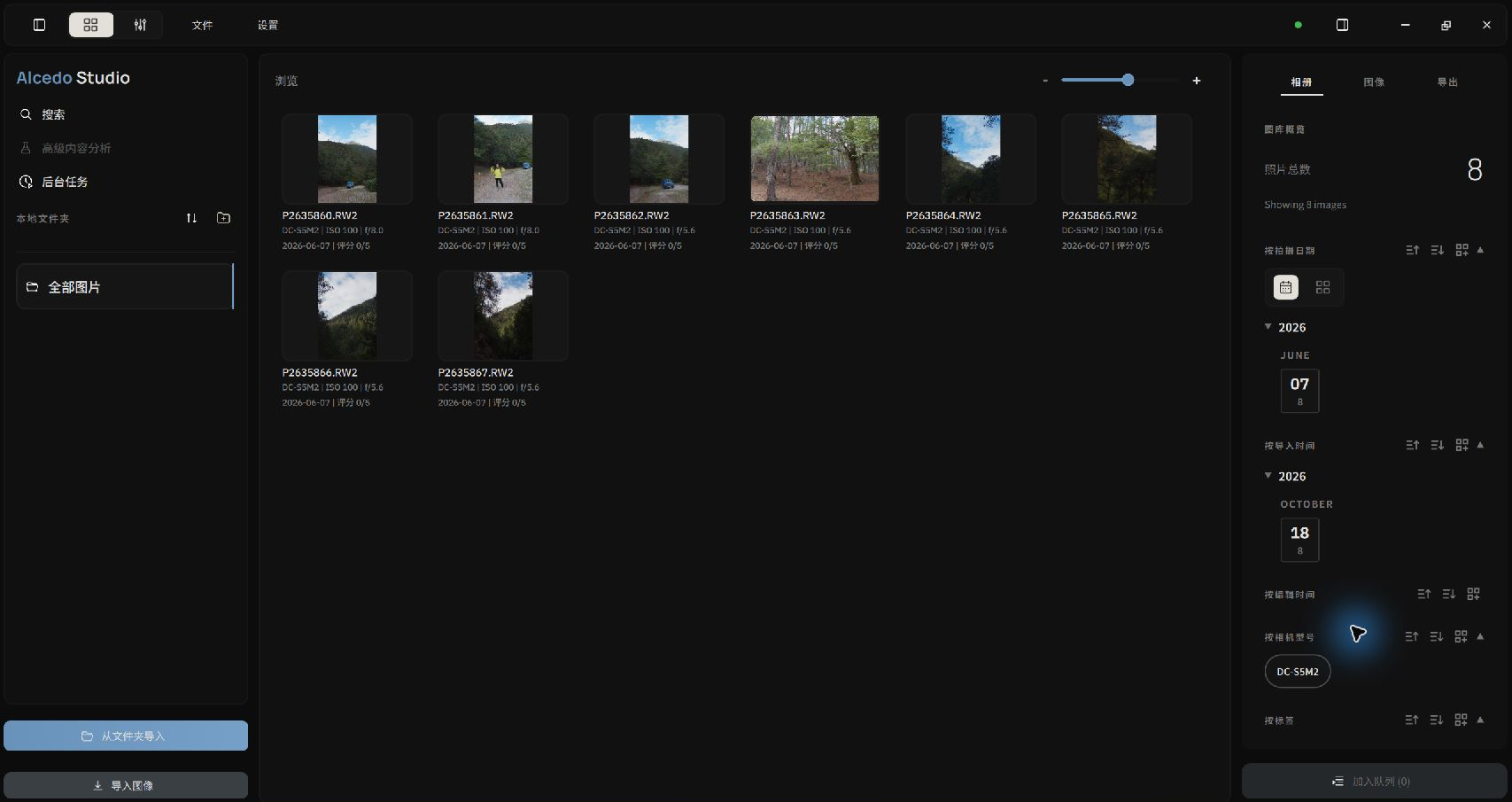 Using the Album Inspector for multi-dimensional filtering and dynamic grouping
1. Filter: Instant Viewport Narrowing
The inspector automatically aggregates metadata across the active view. Click any attribute to apply real-time filtering:
- Capture Date: Click a year, month, or specific day (e.g. "2026-06-07").
- Gear: Filter by camera body (e.g. "Sony A1", "Nikon Z8") or specific focal length / lens model.
- Ratings & Labels: Show only 5-star selects, or isolate specific AI tags (e.g. "Architecture", "Sunset").
- Compound Filters: Combine criteria such as "Nikon Z8 + 50mm f/1.2 + 5 Stars". Active filter chips appear at the top and can be dismissed individually with
x.
2. Sort: Tailored Timeline Navigation
Use the dropdown menu beside any field to change the sort metric and order (Ascending / Descending):
- Capture Time: Follows the chronological story recorded by camera hardware.
- Last Edited Time: Quickly surfaces images you graded recently.
- Import Time and Rating.
3. Group: Structured Collapsible Sections
Click Group By beside any metadata field to organize the thumbnail grid into collapsible, titled blocks:
- Group by Edit Status: Visually separates "Edited" from "Unedited" frames to ensure no shot is missed.
- Group by Capture Date: Neatly folds shoots by day or month with collapsible headers.
Capture Time & Hardware Timezone Handling
Digital cameras record timestamps in EXIF based on their internal hardware clock (without arbitrary desktop timezone offsets). Alcedo Studio parses the camera's physical timestamp directly, preventing desktop timezone shifts from desynchronizing shoot times. This guarantees consistent multi-camera synchronization across international travels.
Once your selects are organized, double-click an image to open Input Decoding & Geometry and begin crafting your image!