Grading Nodes, Layers & Local Masks
In professional cinematography and high-end photographic retouching, single-layer global adjustment sliders often prove inadequate for complex lighting reconstructions. Alcedo Studio introduces a modern Node-Based Color Pipeline paired with Layer-Style Mask Groups, giving you surgical precision over every localized edit.
Why Node-Based Color Grading?
Traditional photo editors stack every adjustment into a single monolithic list, causing global baseline adjustments and localized masks to collide unpredictably. Alcedo Studio decouples grading into a sequential processing chain:
[ Input Decoding (RAW/Raster) ]
       │ Scene-Referred Linear Color Stream (ACEScg)
       ▼
[ Develop Base Node ] ────────────── (Establishes global exposure, sensor white balance, and base dynamic range)
       │
[ Color Grade 1: Subject Pop ] ──── (Radial Mask: Focuses on facial tones, lifts exposure, refines specular contrast)
       │
[ Color Grade 2: Sky Burn ] ─────── (Linear Gradient Mask: Compresses overexposed sky clouds, infuses rich deep blue)
       │
[ Color Grade 3: Global Film Grade ] (Applies 3D LUT film simulation and Lift/Gamma/Gain split toning across the composite)
       │
[ Display Transform ] ────────────── (Maps scene linear values into target display gamut via ACES 2.0 / OpenDRT)
       │
[ Post Processing ] ──────────────── (Applies screen-space diffusion glow, organic film grain, and halation)
Each Color Grade Node functions as an isolated darkroom station equipped with its own dedicated Tone, Look, LUT, and Mask parameters.
Dual Perspectives: Nodes Graph & Mask Groups
To cater to diverse grading habits, Alcedo Studio provides two equivalent viewpoints in the left tool rail:
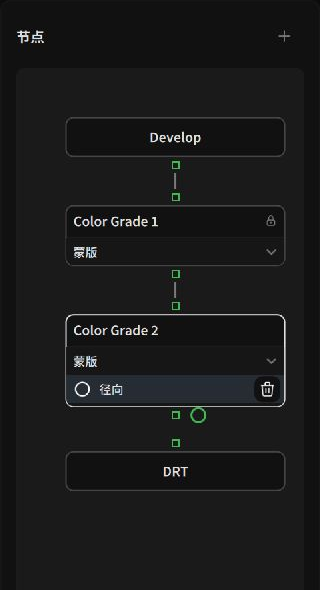 Nodes View: Visualizing the linear topology from raw input to calibrated display
1. Nodes Topology Graph
- Add Color Grade: Click
Add Color Gradeto insert a new grading stage into the chain. - Custom Naming: Name nodes by intent (e.g., "Base Balance", "Subject Key Light", "Cool Ambience").
- Target Selection: Clicking a node in the canvas highlights it; the right adjustment stack updates its title to confirm that all sliders modify that specific node.
2. Layers & Mask Groups View
If you prefer a layer-based workflow reminiscent of Photoshop or Capture One, open the Mask Groups drawer:
- Each grading node is displayed as a layer card with an attached mask preview and an opacity slider.
- Drag layers vertically to reorder operations and observe how sequential blend contexts affect your final render.
The root grading node holds the global baseline for the entire image. Under Settings → Default Behavior, the recommended option is "Create a new layer, then draw". When you begin drawing a mask, the application automatically provisions an isolated local grading layer, preventing your base exposure from being accidentally restricted inside a local circle.
Local Masking Tools & Interactive Canvas Handles
When you attach a mask to a grading node, the contextual Mask inspector slides out automatically while interactive geometric handles appear across the canvas.
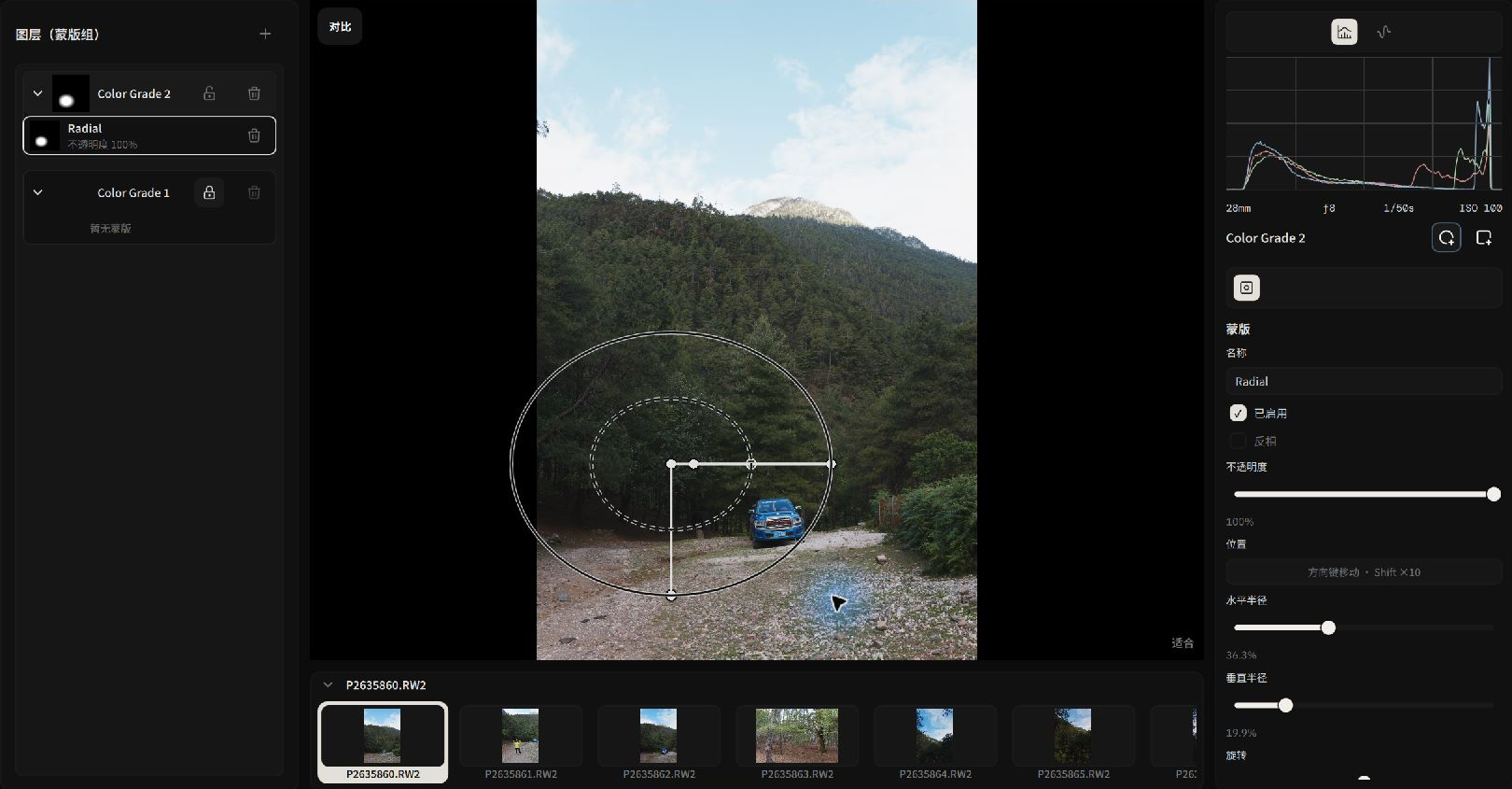 Manipulating radial mask feathering and rotation directly on canvas
1. Radial Mask: Sculpting Subject Illumination
Ideal for lifting portraits, painting dimensional light, or adding subtle spotlights:
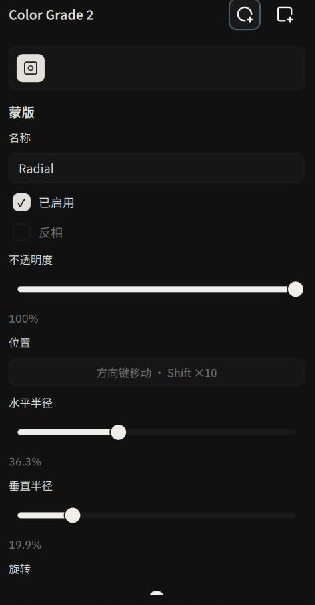 Fine-tuning radial mask geometry and inversion
- Draw the Mask: With a grading node active, add a radial mask and drag across your subject to create an ellipse.
- Interactive Canvas Handles:
- Center Anchor: Drag to reposition (arrow keys provide pixel-level nudge; hold
Shiftfor larger steps). - Dual Feather Rings: The inner ring marks the 100% influence core; the outer ring represents fall-off. Increasing the gap between rings produces seamless, organic blending without visible borders.
- Rotation Handle: Tilt the major and minor axes to align with jawlines or diagonal light rays.
- Center Anchor: Drag to reposition (arrow keys provide pixel-level nudge; hold
- Inversion & Opacity:
- Check
Invert: Instantly flips the mask to darken backgrounds, effectively shaping an organic vignette around your subject. Opacity: Adjusts overall mask influence between 0% and 100%.
- Check
2. Linear Gradient Mask: Balancing Sky and Earth
The ultimate tool in landscape and architectural photography for controlling vast dynamic ranges:
- Draw the Gradient: Add a linear gradient mask and drag from the upper edge of the frame downward toward the horizon.
- Transition Shaping:
- Rotate the gradient axis to match sloping mountain ridges or ocean horizons.
- Adjust Transition Width: A broad transition simulates natural atmospheric haze; a narrow transition conforms to sharp horizon edges.
- Grade Locally: Lower
Exposure, pull backHighlights, and adjust color temperature on this node to recover rich cloud textures without darkening foreground shadows.
With your node pipeline established, proceed to Tone, Curves & Color Grading to explore physical scene exposure and chromatic adaptation!