3D LUT Library, Film Emulation & Color Space Encodings
3D LUTs (3-Dimensional Lookup Tables) are the industry standard for reproducing the nuanced tone curves, dye density, and split-toning characteristics of classic analog film stocks and motion picture prints. Alcedo Studio incorporates a color-managed LUT architecture that eliminates the severe clipping and blown highlights typical of naive LUT implementations.
Official Film Packages & Custom Library Management
To keep the application installer light and agile, Alcedo Studio distributes official film simulation packages via an on-demand, cryptographically verified package manager:
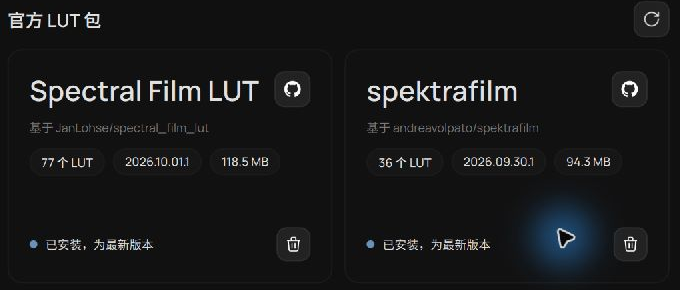 Official Film Simulation Package Manager in Preferences
1. Downloading Official Film Packages
- Navigate to
Settings → LUTs. - Browse the
Official LUT Packageslist, featuring professionally calibrated film profiles (including Kodak Portra, Fujifilm Pro/Superia, CineStill motion picture stocks, Kodachrome, and Tri-X). - Click
Download. The engine downloads, verifies signatures, and installs the package in the background. - Once deployed, the status updates to
Installed. Updates and repairs can be performed directly from this panel.
2. Importing Custom .cube LUTs
To use your own commercial or custom grading .cube files:
- Under
Settings → LUTs, locate the currentLUT library path. - Click
Open in File Explorer(orOpen in Finderon macOS) to reveal the custom LUT directory. - Drop your
.cubefiles or folders into the directory and clickRefresh. Your custom LUTs will immediately appear under theUsercategory in the browser.
The Essential Color Science: Input & Output Color Space Encodings
In amateur photo editors, the most catastrophic mistake is: Applying a LUT authored for camera Log or Rec.709 video directly onto a linear ACES RAW photograph. The result is immediately crushed shadows and blown-out highlights.
Alcedo Studio solves this scientifically by pairing each 3D LUT with explicit Input Encoding and Output Encoding color transforms:
[ Scene Linear Color (ACEScg) ]
             │
             ▼
[ 1. Input Color Transform ] ──▶ Converts scene data to the color space expected by the LUT (e.g. ARRI LogC3, Sony S-Log3, ACEScc)
             │
             ▼
[ 2. 3D LUT Transform ] ───────▶ Applies the exact film print dye and tone mapping curves
             │
             ▼
[ 3. Output Color Transform ] ─▶ Transforms the LUT's output back into the ACES pipeline
             │
             ▼
[ Downstream Grading & Display Transform ]
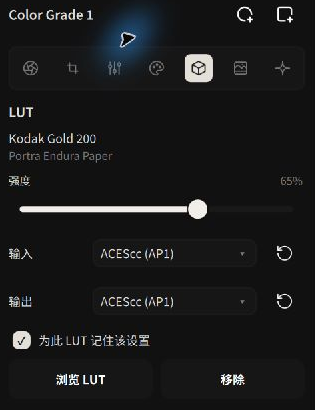 Configuring exact Input and Output Color Space Encodings
Recommended Encodings Guide
- Official Film Simulation Packages: Tailored specifically for Alcedo Studio's linear pipeline; default to ACEScc for both input and output.
- Cinema Camera Log LUTs (ARRI LogC3, Sony S-Log3, Canon Log 2):
- Input Encoding: Set to the corresponding camera Log curve (e.g.
ARRI LogC3). - Output Encoding: Typically set to
Rec.709orACEScc.
- Input Encoding: Set to the corresponding camera Log curve (e.g.
- Standard Web / Social LUTs:
- If a LUT is intended for standard sRGB photos, set both Input and Output Encodings to
sRGBorRec.709.
- If a LUT is intended for standard sRGB photos, set both Input and Output Encodings to
- Remember for this LUT: Checking this box saves the input/output color encoding pairing in the local catalog. Whenever this LUT is selected in the future, the correct color transformations are applied automatically.
If applying a LUT drastically crushes or blows out your image, check the Input and Output Encodings first rather than reducing Strength to 10%. With the correct encodings configured, a LUT can be used at 100% Strength with smooth highlight rolloff and clean shadows.
Browsing, Applying & Blending Strength
In the Editor, open the LUTs drawer from the left tool rail:
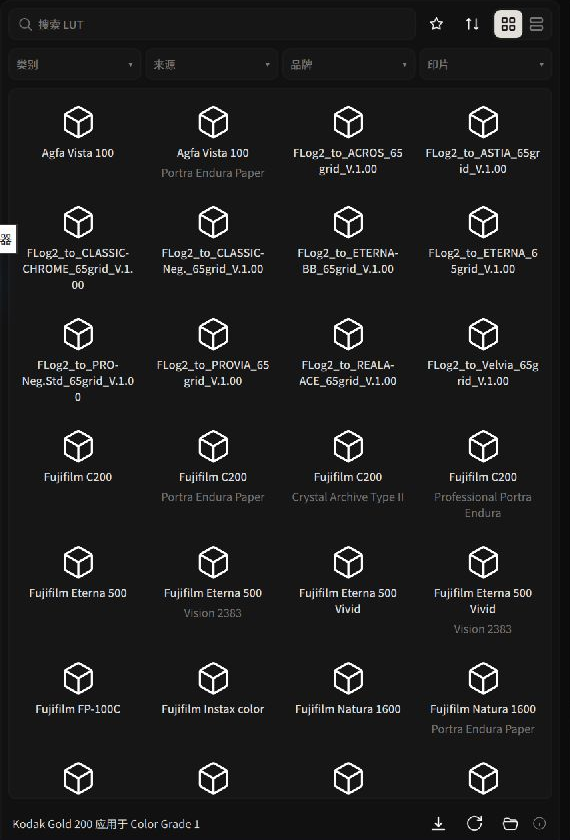 Visual LUT Browser: Category filtering, search, and thumbnail previews
- Targeted Search:
- Filter by Category (Black & White, Color Negative, Color Reversal, Motion Picture), Source, or Brand.
- Enter keywords (such as "Portra 400" or "5207") in the search bar.
- Click the star icon to pin frequently used LUTs to your favorites.
- Apply to Node:
- Verify the desired grading node is selected, then click a LUT in the grid to immediately apply it to the canvas; clicking the active item unbinds it.
- Strength Blending:
- Adjust the Strength slider (0%–100%) in the right panel. The GPU performs linear interpolation between the pre-LUT node state and the transformed output, letting you blend film emulation subtly into modern digital captures.
Now that you have explored film emulation, proceed to Display Transform, HDR & Post-Processing to discover color appearance modeling and finishing effects!